APA Figure Citation Generator
Enter where the figure, chart or image comes from and copy the APA 7 note, in-text citations and reference entry.
The APA Figure Citation Generator writes the APA 7 citation for a figure taken from another source, such as a graph, chart, photograph, image or infographic. Enter the source details and it produces the copyright note that sits under the figure, the in-text mentions, and the reference list entry, so you can copy them into your paper. It runs entirely in your web browser, so what you type stays on your own device. It is free, and no account or sign-up is needed.
The copyright line changes with the status you pick: a copyrighted source gets “Copyright [year] by [holder]”, an openly licensed one its licence name, and a public-domain one “In the public domain.”
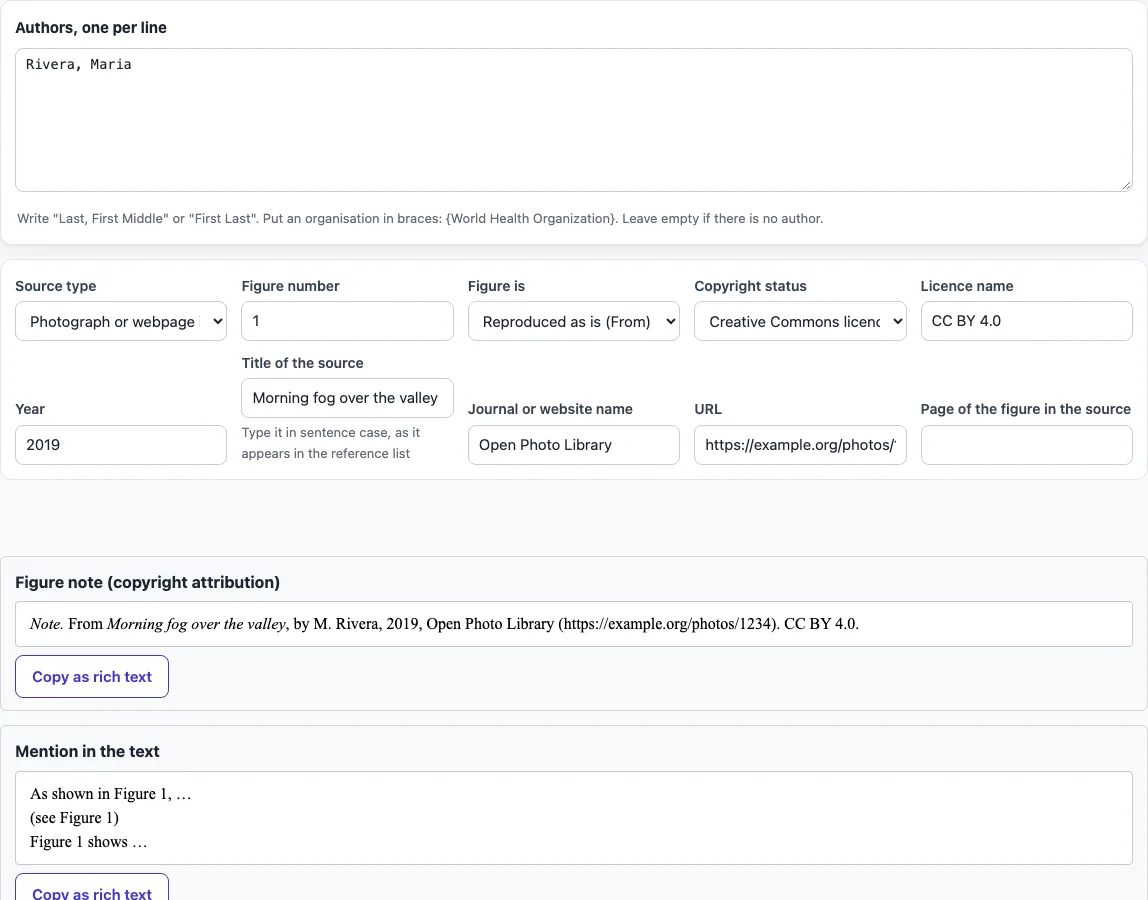
How to use the APA Figure Citation Generator
- Choose the Source type, such as a chart or infographic from a report, or a photograph or webpage image.
- In Authors, one per line, enter each author as Last, First or First Last. For an organisation, put its name in braces, such as {World Health Organization}.
- Enter the year and the title. Type the title in sentence case, as it should appear in the reference list.
- Fill in the publication details that apply: journal or website name, volume, issue, pages, publisher, edition, report number, DOI or URL, and the page where the figure appears in the source.
- Set Copyright status. For copyrighted material, enter the Copyright holder (leave it empty to use the authors or publisher) and the Copyright year. For a Creative Commons item, pick the licence name, such as CC BY 4.0. For public domain, select that option.
- Check the output. The note, the ways to mention the figure in the text, the parenthetical and narrative citations, and the reference list entry all update as you type.
- Click Copy as rich text to keep italics when you paste into Word or Google Docs, or Copy plain text for other editors.
Your option choices are kept in the page address. Bookmark the page or share the link, and it reopens with the same settings. Your text is never added to the address.
How do I cite a figure in APA 7?
Number the figure and give it a title above it, then add a note below it that carries the copyright attribution. The source must also appear in the reference list, because the note does not replace that entry.
The note follows a fixed order. It starts with Note. in italics, then the lead-in “From” or “Adapted from”, the title (in quotation marks for an article, in italics for a book, webpage or image), “by” and the authors with initials first, the year, and the source in italics with its volume, issue, page and DOI or URL. Last comes the copyright line, such as Copyright 2019 by Example Press. Creative Commons items end with the licence name, and public-domain items end with “In the public domain.”
For example, the tool’s sample photograph under a CC BY 4.0 licence gives the note Note. From Morning fog over the valley, by M. Rivera, 2019, Open Photo Library (https://example.org/photos/1234). CC BY 4.0. Its reference entry is Rivera, M. (2019). Morning fog over the valley [Photograph]. Open Photo Library. https://example.org/photos/1234
What is the difference between From and Adapted from?
Use “From” when you reproduce the figure exactly as it appears in the source. Use “Adapted from” when you changed it in any way.
Redrawing a chart from someone else’s data counts as an adaptation, so it takes “Adapted from”. If you received permission from the copyright holder, add “Reprinted with permission.” after a figure you reproduced, or “Adapted with permission.” after one you changed.
How do I cite a photograph or an image from a website?
Choose Photograph or webpage image. The note then names the image title in italics, the creator, the year and the website, followed by the URL, and the reference entry adds a description in square brackets, such as [Photograph], after the title. If the image has no title, describe it in square brackets instead.
Frequently asked questions
How do I cite an image or chart from a website in APA?
Choose the webpage option for the Source type, such as webpage image for a photo or graphic. Enter the authors or organisation, the year, the title, the website name, and the URL, plus the page where the image appears.
How do I refer to a figure in the text?
Refer to the figure by its number, for example “as shown in Figure 1”. Cite the source in the note under the figure and in the reference list, not in the sentence that names the figure.
Do I still need a reference list entry if the figure has a note?
Yes. The note gives the copyright attribution, but the reference list entry is still required for the source.
Do I need permission to use a chart in my paper?
Copyrighted material outside the public domain or an open licence generally needs the holder’s permission for a published work. Many student papers fall under fair use, but follow your institution’s rule. This is general guidance, not legal advice.
Is my source material uploaded when I use the tool?
No. The tool runs in your web browser, and what you type or open is processed on your own device.
Can I use the citation output in commercial work?
Yes. The output may be used for any purpose, including published papers and commercial work, with no attribution required.
Related tools
- LaTeX figure generator: use it to place a figure with a caption in a LaTeX document.
- BibTeX to APA: use it to convert BibTeX entries into APA reference list entries.
- APA table format: use it to check how a table should be laid out in an APA paper.
- Cite a table in APA: use it when the source you are citing is a table rather than a figure.
- APA figure format: use it to check the layout, numbering and title of a figure in APA style.
- APA headings: use it to choose the right heading level for sections of your paper.