MLA Heading Generator for the First Page
Type your name, instructor, course, date and title to get the MLA 9 first-page heading, ready to copy into Word or Google Docs.
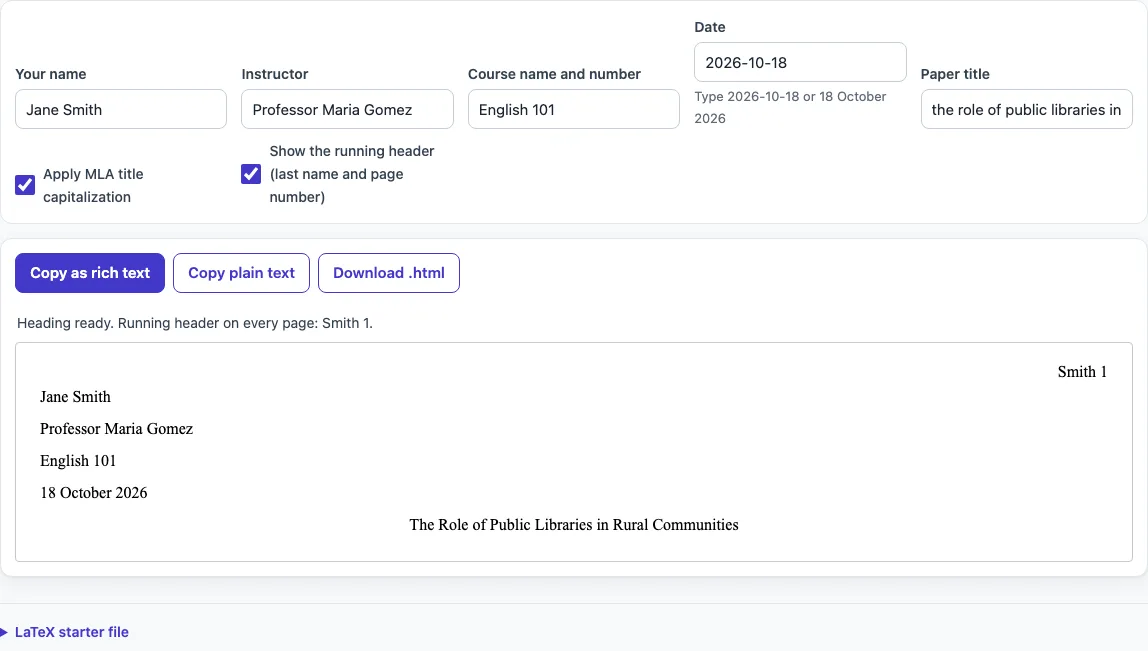
How to use the MLA heading tool
- Type your name in Your name.
- Type your instructor’s name in Instructor.
- Type the course name and number in Course name and number.
- Type the date in Date. Typing 2026-10-18 shows as 18 October 2026.
- Type your paper title in Paper title, in ordinary sentence form.
- Leave Apply MLA title capitalization on to capitalize the title by MLA rules. Switch it off if you want the title kept exactly as typed.
- Leave Show the running header (last name and page number) on to see the header in the preview. Switch it off to hide it.
- Check the preview. The four heading lines sit flush left, the centered title follows, and the header appears at the top right.
- Choose your output: Copy as rich text for Word or Google Docs, Copy plain text, Download .html, or the LaTeX starter file.
- To print, use your browser’s print command: only the paper preview prints.
Copy as rich text puts HTML and plain text on the clipboard, so Word and Google Docs keep the Times New Roman, double-spaced layout. It copies the heading block and title only. The header belongs in your document’s header area, so add it there yourself, using the preview as a reference.
What goes in an MLA heading?
An MLA heading has four lines, flush left and double-spaced, in this order: your name, your instructor’s name, the course name and number, and the date. The paper title follows on the next line, centered, with no bold, italics, underline, quotation marks or all capitals.
Title capitalization follows MLA rules. The first and last words are capitalized, along with the first word after a colon and every principal word. Articles (a, an, the), coordinating conjunctions (for, and, nor, but, or, yet, so) and prepositions of any length stay lowercase, and the “to” of an infinitive stays lowercase. Both parts of a hyphenated compound are capitalized, as in “Self-Report.” So “how to play chess: a guide to the opening” becomes “How to Play Chess: A Guide to the Opening.”
Where does the MLA heading go?
The MLA heading goes at the top of page 1 only, starting at the left margin. Your paper uses 1-inch margins on all sides and double spacing throughout, so the heading follows the same spacing as the body text.
The heading does not repeat on later pages. Only the running header appears on every page, and it has a different position and content.
Is the MLA heading the same as the header?
No. The heading is the four lines plus the centered title, and it appears only on page 1. The header is your last name and the page number, and it appears on every page in the upper right corner, flush with the right margin.
The header text comes from the last word of your name. “Jane Smith” gives “Smith 1,” and “Smith, Jane” also gives “Smith.” Suffixes such as “Jr.” are skipped. In the worked example, Jane Smith’s entry produces four left-aligned heading lines, the centered title “The Role of Public Libraries in Rural Communities,” and “Smith 1” at the top right.
What is the date format in an MLA heading?
The MLA date format is day, month, year, such as 18 October 2026. The tool shows a date typed as 2026-10-18 in that form. Text typed another way, such as “18 Oct. 2026,” is kept as you typed it, so type the full month name if you want the exact format.
Does an MLA paper need a title page?
No. MLA 9 does not require a title page, and the paper starts with the heading on page 1. Do not add a title page unless your instructor specifically asks for one.
Sources
Checked 18 October 2026: the UCF MLA 9 guide (heading order, header position, margins, font); the Chesapeake College LRC MLA header guide (page last updated 25 February 2026: no title page unless requested, Word header steps); the UGA CURO MLA title style guide (title capitalization). The MLA Style Center page on formatting a paper only points to a sample chapter of the MLA Handbook Plus, so these university guides that follow the MLA Handbook, 9th edition, are the sources. Your instructor’s requirements come first.
Frequently asked questions
Can I change the order of the heading lines?
The guides list the order as name, instructor, course and date, so keep that order unless your instructor says otherwise. The tool builds the lines in that order.
Does the tool save what I type?
Nothing is uploaded, because the tool runs in your browser. The fields are also not written to the page address.
Can I hide the running header?
Yes. Turn off the “Show the running header (last name and page number)” option. The header stays out of the preview, and the heading block is unaffected.
Why does my title have a lowercase “of” or “the”?
Articles, prepositions of any length and coordinating conjunctions stay lowercase in MLA title capitalization, unless they are the first or last word or follow a colon. If you want every word capitalized, switch off the capitalization option.
Why do the rules differ between sources?
Sources differ slightly on small details, such as how far the heading sits from the top of the page. Your instructor’s requirements come first. The official MLA Style Center formatting page only points to a sample chapter of the MLA Handbook Plus, so this guide relies on university guides that follow the MLA Handbook, 9th edition.
Will the heading keep its formatting in Word?
Yes, when you use Copy as rich text. It keeps the Times New Roman font and double-spaced layout in Word and Google Docs.
Do I need to add the header myself?
Yes. Copy as rich text does not include the header, because the header goes in your document’s header area. Use the preview to see the exact text, such as “Smith 1,” and place it at the top right of each page.
Related tools
- MLA header: Use this when you need the last name and page number that appear on every page.
- MLA title page: Use this only if your instructor asks for a separate title page.
- BibTeX to MLA: Use this to convert BibTeX entries into MLA-style citations.
- APA headings: Use this if your paper follows APA style instead of MLA.
- LaTeX font size: Use this to change the font size in a LaTeX document.